


An earlier posting described a step-by-step process for converting a Word doc to clean HTML for posting on your site. Today’s posting updates that information, with specific reference to creating multi-part HTML postings.
A multi-part posting may make sense when the original document is too long for a single posting on your site, or if you wish to serialize its presentation over postings on multiple days.
Multi-part HTML postings pose a number of unique differences from a single page posting, namely in:
- Needing to deal with multiple internal document cross-references (not only for a table of contents but also any Word doc cross-references ((Insert –> Reference –> Cross-reference) such as for internal headers, figures, tables, etc.
- Organizing and splitting the table of contents (TOC) itself, and
- Image naming and referencing.
So, how does one proceed with a multi-part HTML conversion in preparation for posting?
Specific Conversion Steps
- The first requirement is that you must create your baseline Word document with a table of contents (TOC) (Insert –> Reference–> Index and Tables –> Table of Contents). You should give great care to the construction and organization of the TOC because it will dictate your eventual multi-part HTML pages and splits
- When the Word doc is absolutely complete (and only then!), follow the steps in the earlier posting on Word docs to HTML to get absolutely as clean an HTML code base as possible. Include all global search and replaces (S & R) as the earlier post instructed. UNTIL THE ABSOLUTELY LAST SPECIFIC CONVERSION STEP #6 BELOW YOU WILL CONTINUE TO WORK WITH THIS SINGLE HTML DOCUMENT! For example, you may end up with clean HTML code for your TOC such as the following:
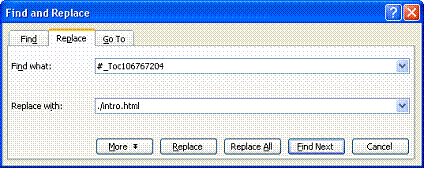
- Do global S & R on the TOC references, replacing with internal page link (e.g., “./ …) references, as this example for the Intro shows:
- You may also need to do additional code cleanup. For example, in the snippet below, the first href refers to the TOC entry that will be replaced via steps #3 and #6. However, the second href is an internal cross-reference from another location (not the TOC) in the Word doc. For these additional cross-references, you will need either to chose to keep them and rename logically with S & R or to remove them. (Generally, since you are already splitting a long Word doc into multiple HTML pages such additional cross-references are excessive and unnecessary; you can likely remove.):
- You will then need to rename your images using global S & R, which were given sequential image numbers (not logical names) in the Word doc to HTML conversion. For example, you may have an image named:
- Finally, your HTML is now fully prepped for splitting into multiple pages. You need to do three more things in this last step.
<p><a href=”#_Toc106767203″>EXECUTIVE SUMMARY. 1</a></p>
<p><a href=”#_Toc106767204″>I. INTRODUCTION. 3</a></p>
<p><a href=”#_Toc106767205″>Knowledge Economy. 3</a></p>
<p><a href=”#_Toc106767206″>Corporate Intellectual Assets. 4</a></p>
<p><a href=”#_Toc106767207″>Huge Implications. 4</a></p>
<p><a href=”#_Toc106767208″>Data Warehousing?. 6</a></p>
<p><a href=”#_Toc106767209″>Connecting the Dots. 6</a></p>
<p><a href=”#_Toc106767210″>II. INTERNAL DOCUMENTS. 7</a></p>
<p><a href=”#_Toc106767211″>‘Valuable’ Documents. 7</a></p>
<p><a href=”#_Toc106767212″>‘Costs’ to Create. 8</a></p>
<p><a href=”#_Toc106767213″>‘Cost’ to Modify. 9</a></p>
<p><a href=”#_Toc106767214″>‘Cost’ of a Missed. 9</a></p>
<p><a href=”#_Toc106767215″>Other Document ‘Cost’. 9</a></p>
<p><a href=”#_Toc106767216″>Archival Lifetime. 10</a></p>
<p><a href=”#_Toc106767217″>III. WEB DOCUMENTS AND SEARCH. 10</a></p>
<p><a href=”#_Toc106767218″>Time and Effort for Search. 11</a></p>
<p><a href=”#_Toc106767219″>Lost Searches. 11</a></p>
<p><a href=”#_Toc106767220″>‘Cost’ of a Portal. 14</a></p>
<p><a href=”#_Toc106767221″>‘Cost’ of Intranets. 16</a></p>
<p><a href=”#_Toc106767222″>IV. OPPORTUNITIES AND THREATS. 18</a></p>
<p><a href=”#_Toc106767223″>‘Costs’ of Proposals. 18</a></p>
<p><a href=”#_Toc106767224″>‘Costs’ of Regulation. 21</a></p>
<p><a href=”#_Toc106767225″>‘Cost’ of Misuse. 24</a></p>
<p><a href=”#_Toc106767226″>V. CONCLUSIONS. 25</a></p>
There will need to be as many S & R replacements throughout the document as there are entries in the TOC. You should be careful to name your internal pages according to your anticipated final published structure for the multi-part HTML pages. Upon completion of the global S & R, you should then remove earlier Word doc page numbers and clean up spaces or other display issues. Thus, using the example above, you could end up with revised code for the TOC as follows:
<p><a href=”./summary.html”>EXECUTIVE SUMMARY</a></p>
<p><a href=”./intro.html”>I. INTRODUCTION</a></p>
<p><a href=”./intro.html#knowledge”>Knowledge Economy</a></p>
<p><a href=”./intro.html#assets”>Corporate Intellectual Assets</a></p>
<p><a href=”./intro.html#huge”>Huge Implications</a></p>
<p><a href=”./intro.html#data”>Data Warehousing?</a></p>
<p><a href=”./intro.html#dots”>Connecting the Dots</a></p>
<p><a href=”./internal.html”>II. INTERNAL DOCUMENTS</a></p>
<p><a href=”./internal.html#docs”>‘Valuable’ Documents</a></p>
<p><a href=”./internal.html#create”>‘Costs’ to Create</a></p>
<p><a href=”./internal.html#modify”>‘Cost’ to Modify</a></p>
<p><a href=”./internal.html#missed”>‘Cost’ of a Missed</a></p>
<p><a href=”./internal.html#etc”>Other Document ‘Cost’</a></p>
<p><a href=”./internal.html#archive”>Archival Lifetime</a></p>
<p><a href=”./web.html”>III. WEB DOCUMENTS AND SEARCH</a></p>
<p><a href=”./web.html#time”>Time and Effort for Search</a></p>
<p><a href=”./web.html#lost”>Lost Searches</a></p>
<p><a href=”./web.html#portal”>‘Cost’ of a Portal</a></p>
<p><a href=”./web.html#intranets”>‘Cost’ of Intranets</a></p>
<p><a href=”./opps.html”>IV. OPPORTUNITIES AND THREATS</a></p>
<p><a href=”./opps.html#proposals”>‘Costs’ of Proposals</a></p>
<p><a href=”./opps.html#regs”>‘Costs’ of Regulation</a></p>
<p><a href=”./opps.html#misuse”>‘Cost’ of Misuse</a></p>
<p><a href=”./conclusion.html”>V. CONCLUSIONS</a></p>
<h1><a name=”_Toc106767204″></a><a name=”_Toc90884898″> I. INTRODUCTION</a></h1>
<p>How many documents does your organization create each year? What effort does this represent in terms of total staffing costs? Etc., etc.</p>
<img width=”664″ height=”402″ src=”Document_files/image001.jpg”>
You will need to give that image a better logical name, and perhaps put it into its own image subdirectory, like the following:
<img width=”664″ height=”402″ src=”./images/CostChart1.jpg”>
First, via cut-and-paste take your TOC and any intro text from the main HTML document and place it into an index.html HTML document. That should also be the parent directory for any of your subsequent split pages. Thus, in our example herein, you would have a directory structure that looks like:
MAIN (where index.html is located)
Summary
Intro
Internal
Web
Opps
Conclusion
Second, cut-and paste the HTML sections from the main HTML document that correspond to the five specific split pages (summary.html to conclusion.html) and place each of them into their own named, empty HTML shells with header information, etc. Thus, the pasted portions are what generally corresponds to the <body> . . . </body> portion of the HTML. This is how the various subparts.html get created.
Third, and last, delete each of the main page cross-references changed during global S & R (these are all of the references without internal anchor # tags); these references are now being handled directly via the multiple, split HTML page documents. For clarity, these deleted references are thus for our example:
<p><a href=”./summary.html”>EXECUTIVE SUMMARY</a></p>
<p><a href=”./intro.html”>I. INTRODUCTION</a></p>
<p><a href=”./intro.html#knowledge”>Knowledge Economy</a></p>
<p><a href=”./intro.html#assets”>Corporate Intellectual Assets</a></p>
<p><a href=”./intro.html#huge”>Huge Implications</a></p>
<p><a href=”./intro.html#data”>Data Warehousing?</a></p>
<p><a href=”./intro.html#dots”>Connecting the Dots</a></p>
<p><a href=”./internal.html”>II. INTERNAL DOCUMENTS</a></p>
<p><a href=”./internal.html#docs”>‘Valuable’ Documents</a></p>
<p><a href=”./internal.html#create”>‘Costs’ to Create</a></p>
<p><a href=”./internal.html#modify”>‘Cost’ to Modify</a></p>
<p><a href=”./internal.html#missed”>‘Cost’ of a Missed</a></p>
<p><a href=”./internal.html#etc”>Other Document ‘Cost’</a></p>
<p><a href=”./internal.html#archive”>Archival Lifetime</a></p>
<p><a href=”./web.html”>III. WEB DOCUMENTS AND SEARCH</a></p>
<p><a href=”./web.html#time”>Time and Effort for Search</a></p>
<p><a href=”./web.html#lost”>Lost Searches</a></p>
<p><a href=”./web.html#portal”>‘Cost’ of a Portal</a></p>
<p><a href=”./web.html#intranets”>‘Cost’ of Intranets</a></p>
<p><a href=”./opps.html”>IV. OPPORTUNITIES AND THREATS</a></p>
<p><a href=”./opps.html#proposals”>‘Costs’ of Proposals</a></p>
<p><a href=”./opps.html#regs”>‘Costs’ of Regulation</a></p>
<p><a href=”./opps.html#misuse”>‘Cost’ of Misuse</a></p>
<p><a href=”./conclusion.html”>V. CONCLUSIONS</a></p>
Voilà. You now have multiple HTML pages from a Word document!

I usually also replace (or disable in Word) the so called
“smart quotes” as they don’t look good on the Web.
The same goes for the strange apostrophe sign.
Dreamweaver is pretty good at cleaning Word mess and it
sounds like your search-and-replace’s in combination
with the Dreamweaver’s Word markup cleanup tool would
nicely complement each other.
I haven’t tried, but I believe the easiest way to go about this
is to convert a MS Word document to RTF and then save it
as HTML using some sane piece of software.